Every time I onboard a new engineer who’s only ever worked in the cloud, I ask the same question: “Do you know what an EC2 instance actually is?” The answers I get tell me everything about the gaps in their mental model.
Most of them know it’s a virtual server. Some know it runs on a hypervisor. Almost none can tell me what physical hardware sits beneath it, how EBS volumes map to actual storage devices, or why Lambda cold starts happen. And that gap in understanding leads directly to bad architectural decisions: oversized instances, mismatched storage types, functions that timeout under load.
I spent the first years of my career building and managing physical data centers before I moved to the cloud full-time. That background isn’t nostalgic trivia; it’s the foundation that lets me make sense of what cloud computing services are really doing and why they behave the way they do.
EC2: Your Server, Minus the Server Room
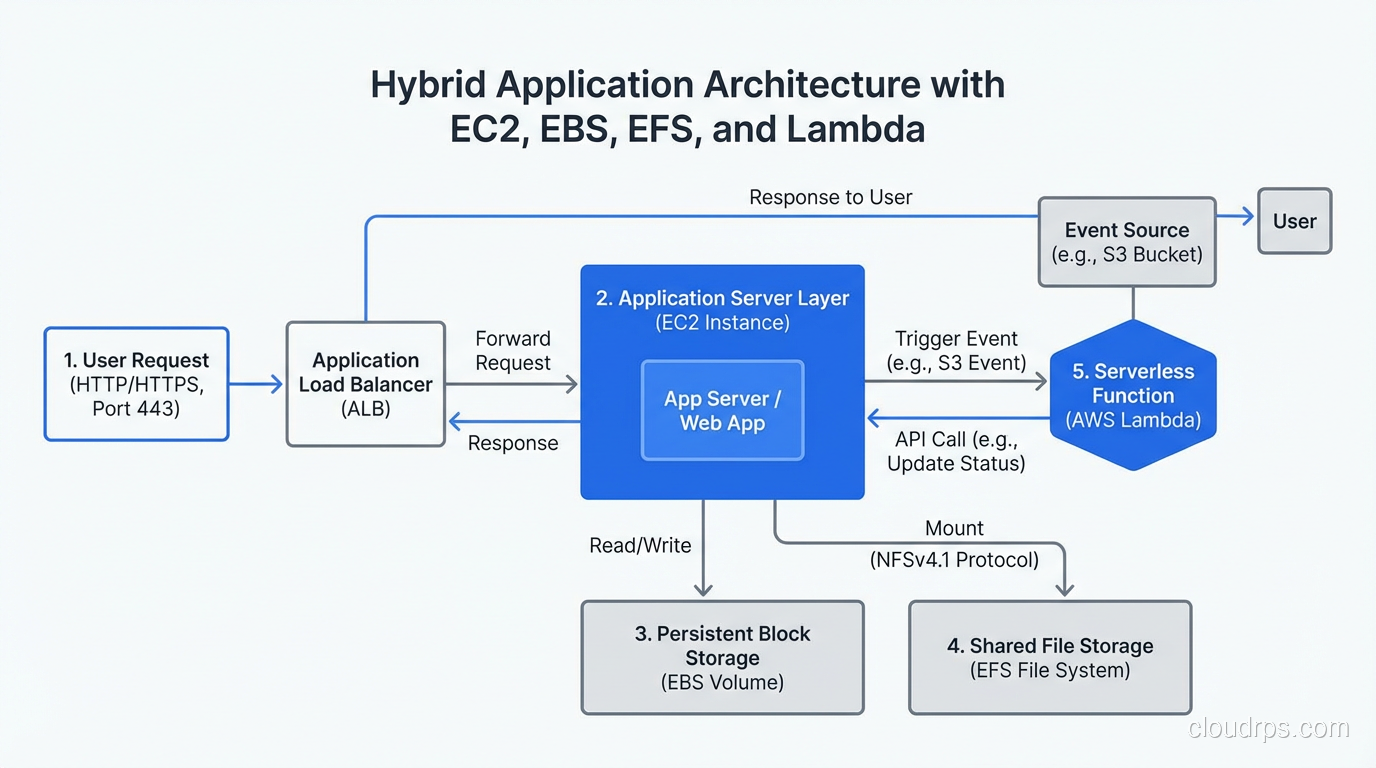
An EC2 instance is a virtual machine. Full stop. Under the hood, it’s a slice of a physical server running in an AWS data center, carved up by a hypervisor and presented to you as if it were a dedicated machine.
The Physical Reality
The physical servers in AWS data centers are custom-designed machines that AWS calls “Nitro” hosts. They look roughly like any other 1U or 2U rack-mounted server: Intel or AMD processors (and now Graviton ARM chips designed by AWS themselves), banks of RAM, local NVMe drives, and network interface cards. The difference is in the Nitro system: custom hardware cards that offload virtualization, storage, and networking functions from the main CPU.
In a traditional data center, I’d buy a Dell PowerEdge or HPE ProLiant, spec it out with the CPUs, RAM, and drives I needed, and rack it. That server was mine. All its resources were dedicated to my workloads.
With EC2, that same physical server is shared across multiple customers. The Nitro hypervisor (based on KVM) carves the physical resources into virtual slices. A c5.xlarge instance? That’s 4 vCPUs (which are hyperthreads on an Intel Xeon), 8 GB of RAM, and access to network and storage bandwidth through the Nitro cards. Your instance gets its dedicated slice of CPU and memory, but the physical host might be running a dozen other customers’ instances simultaneously.
Instance Families Map to Hardware Specialization
This is where the physical hardware background really helps. In the old world, I’d buy different servers for different jobs:
- Compute-heavy workloads got servers with fast CPUs and minimal RAM
- Memory-heavy workloads (databases, caches) got servers with massive RAM
- Storage-heavy workloads got servers with lots of drive bays
- GPU workloads got specialized machines with multiple GPUs
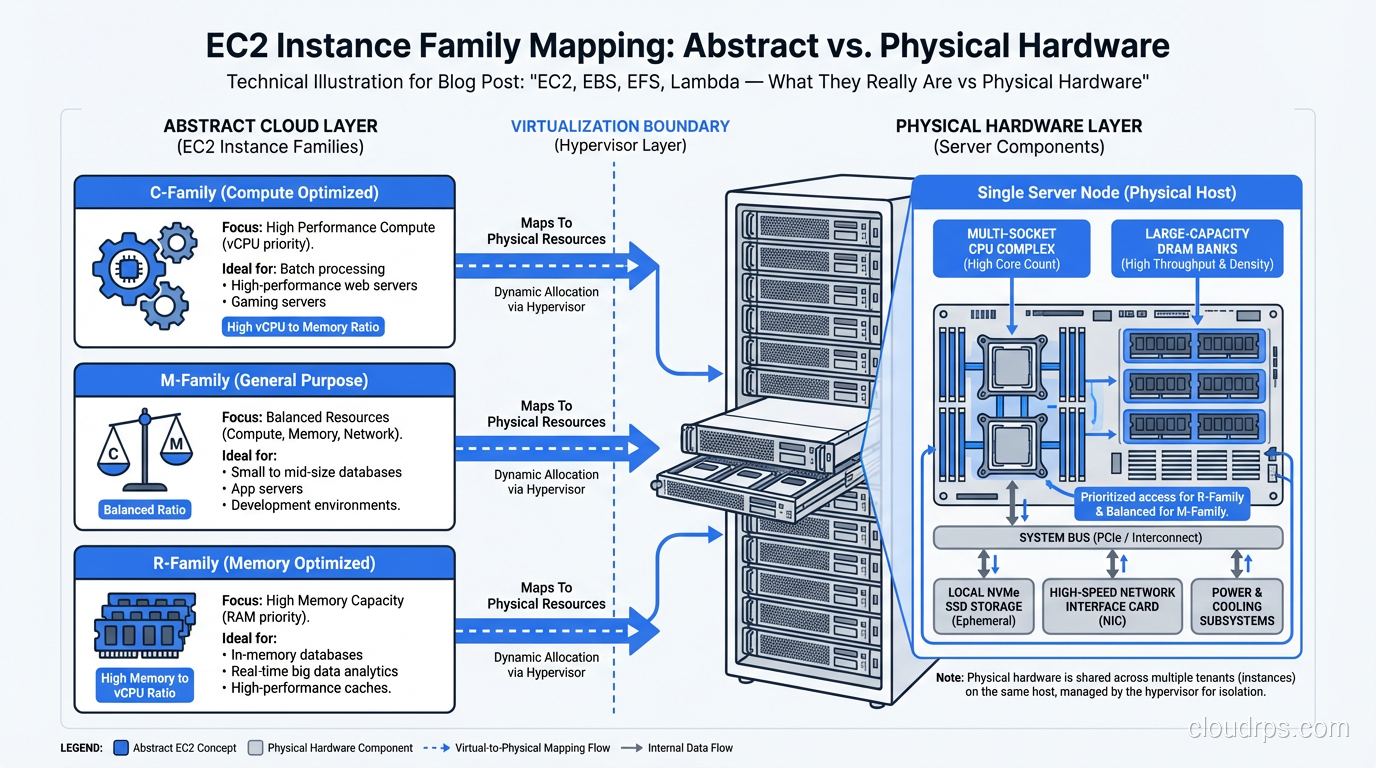
EC2 instance families map directly to these physical specializations:
- C-family (c5, c6g, c7g): Compute-optimized. Higher ratio of CPU to memory.
- R-family (r5, r6g, r7g): Memory-optimized. Higher ratio of memory to CPU.
- I-family (i3, i4i): Storage-optimized. Local NVMe SSDs for high I/O.
- P-family and G-family (p4d, g5): GPU instances. NVIDIA GPUs attached to the physical host.
The reason these families exist isn’t arbitrary. It’s because the underlying physical hosts are actually built differently. An i3 host has lots of local NVMe drives. A p4d host has NVIDIA A100 GPUs physically installed. You’re not just getting a different software configuration; you’re being placed on different physical hardware.
What “Dedicated” Actually Means
When I first started using EC2, the shared tenancy model bothered me. Coming from dedicated hardware, the idea of sharing a physical server with strangers felt wrong. AWS offers dedicated instances and dedicated hosts for this exact reason. They guarantee your instance runs on hardware that’s not shared with other AWS accounts.
In practice, I rarely recommend dedicated unless compliance requires it. The Nitro hypervisor’s isolation is solid, and dedicated instances cost significantly more. But understanding that the option exists, and why it exists, matters for architecture decisions in regulated industries.
EBS: Your Disk, But Over the Network
This is where the physical-to-cloud mapping gets really interesting, because EBS is fundamentally different from a local disk in ways that have massive performance implications.
The Physical Equivalent
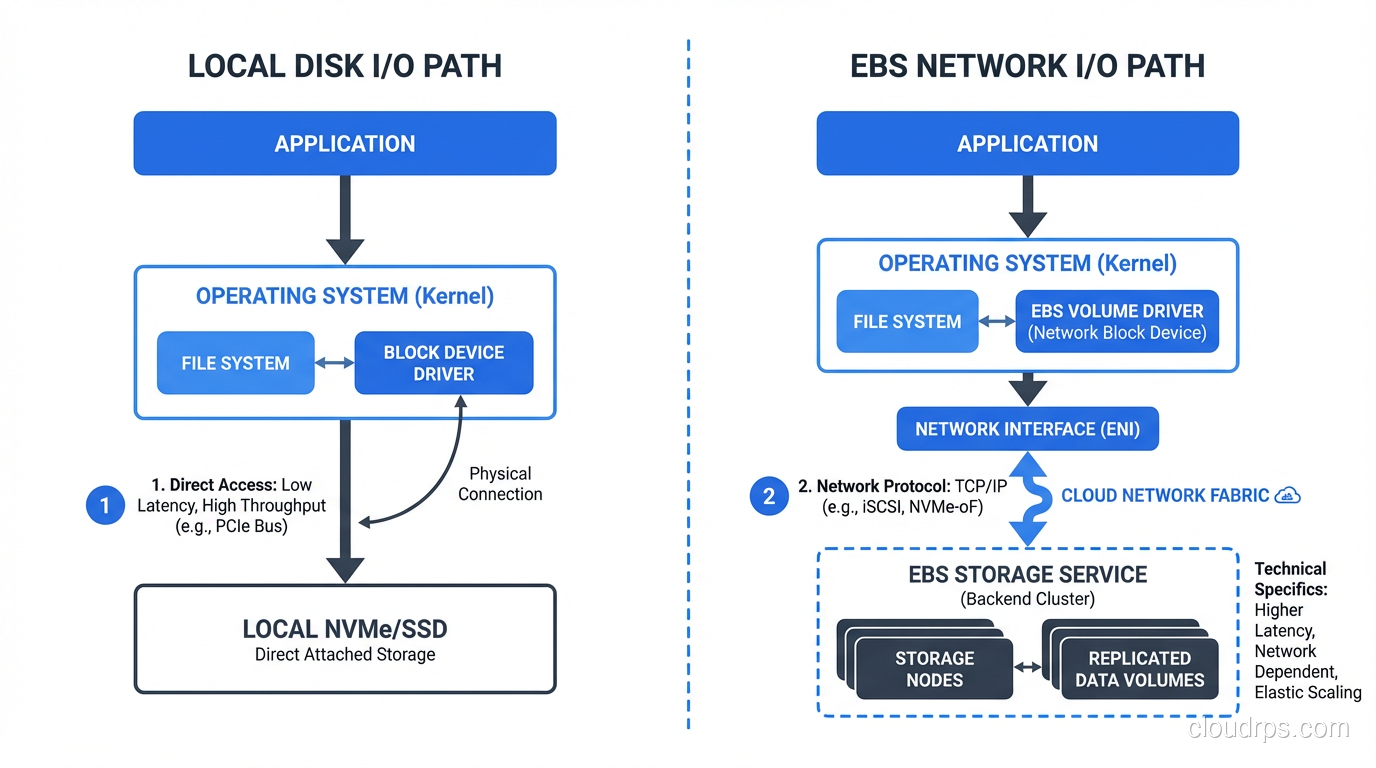
In a physical server, your storage is right there: SATA drives, SAS drives, or NVMe SSDs plugged directly into the motherboard or a backplane. The data travels a few inches over a PCIe bus or SATA cable. Latency is measured in microseconds. The disk fails when the disk fails, and the data is gone unless you had RAID.
EBS is network-attached storage masquerading as a local disk. Your EC2 instance sees what looks like a block device (/dev/xvda or /dev/nvme1n1), but that “disk” is actually a network endpoint. Reads and writes travel over AWS’s internal network to the EBS service, which stores your data on redundant physical drives in the same availability zone.
Why This Matters More Than You Think
I learned this lesson the hard way. In 2014, I migrated a database from a physical server with local SSDs to an EC2 instance with EBS. Same CPU, same RAM, and the database was noticeably slower. I spent two days troubleshooting before I understood: the latency profile was completely different.
Local NVMe: ~100 microsecond latency, consistent, predictable. EBS gp2 (at the time): ~1-2 millisecond latency, variable, with burst credits.
For a database doing thousands of random reads per second, that 10x latency difference was devastating.
The EBS types map loosely to physical storage tiers:
- gp3 (General Purpose SSD): Like a decent SATA SSD. Good for most workloads. 3,000 baseline IOPS.
- io2 Block Express (Provisioned IOPS): Like a high-end NVMe drive on a dedicated controller. Up to 256,000 IOPS with sub-millisecond latency.
- st1 (Throughput Optimized HDD): Like a bank of spinning disks in a JBOD configuration. Good sequential throughput, terrible random I/O.
- sc1 (Cold HDD): Like the cheapest bulk spinning disk you can find. Archival storage.
The critical difference from physical hardware: EBS volumes are replicated within the availability zone. When you write to EBS, that data is stored on multiple physical drives. You don’t need RAID because the service provides durability. This is a genuine advantage over physical hardware, where a drive failure without RAID meant data loss.
For deeper discussion on storage types, check out Block vs Object vs File Storage.
EFS: Your File Server, Elastic and Managed
EFS (Elastic File System) maps to a concept that’s been around forever in physical data centers: the NAS (Network Attached Storage) file server.
The Physical Equivalent
In every data center I managed, there was at least one NetApp filer or EMC NAS appliance. These boxes served NFS or CIFS file shares to dozens of servers simultaneously. They handled concurrent access, file locking, and provided a shared filesystem that multiple machines could mount.
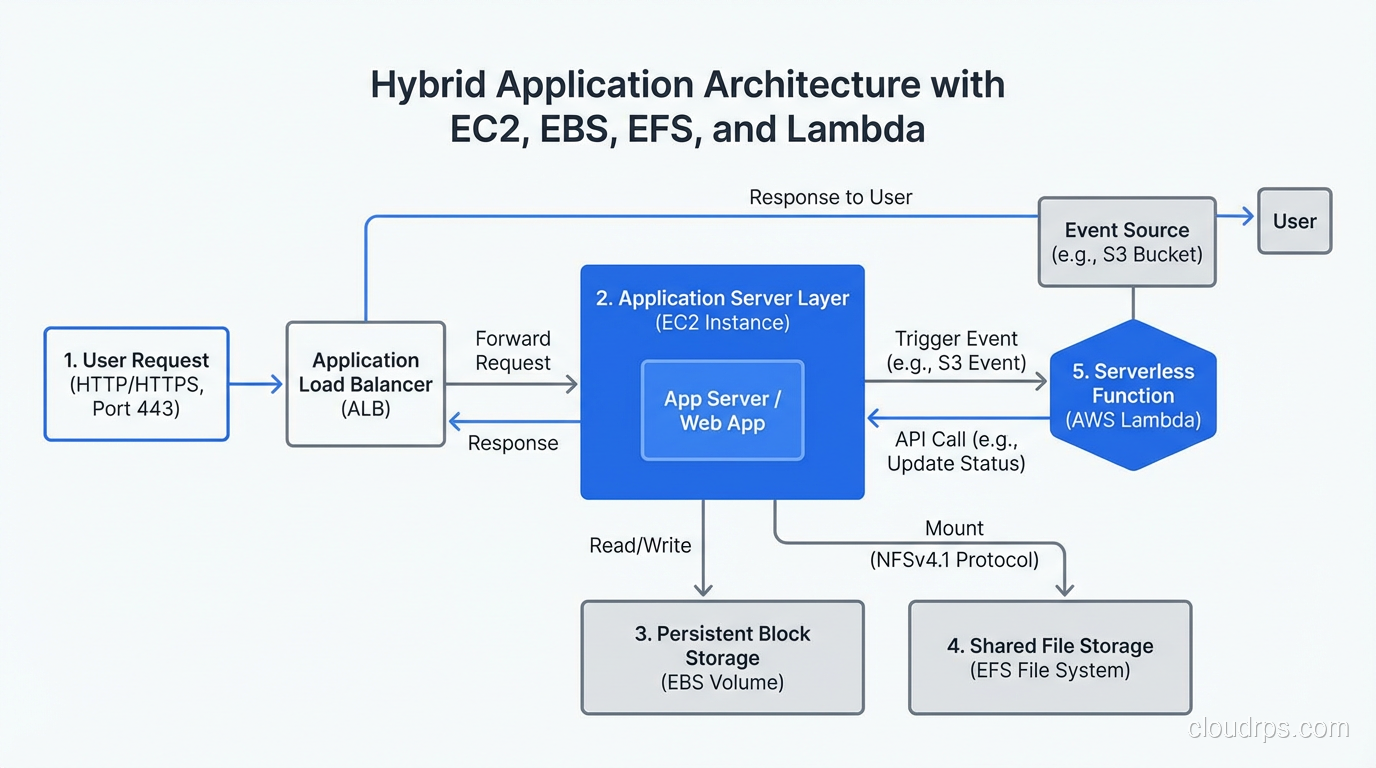
EFS is exactly this, but managed by AWS and built to scale elastically. You create a filesystem, mount it on multiple EC2 instances via NFS v4.1, and read/write files. The storage grows and shrinks automatically, with no capacity planning required.
The Performance Reality
Here’s where physical data center experience helps set expectations. In the physical world, NAS performance was always worse than local disk. You’re adding network hops, going through a file protocol (NFS/CIFS), and sharing bandwidth with other clients.
EFS has the same characteristics, amplified. EFS standard latency is typically 2-5 milliseconds, usable for many workloads but noticeably slower than EBS, which is itself slower than local disk. For throughput-sensitive workloads, you need to understand EFS’s throughput modes (bursting vs. provisioned) or you’ll hit walls.
I use EFS for what I used NAS for in the physical world: shared configuration files, content management storage, home directories, and workloads where multiple servers need access to the same files. I don’t use it for databases or anything latency-sensitive.
EFS vs EBS: The Key Distinction
EBS volumes attach to a single EC2 instance (with some multi-attach exceptions). EFS can be mounted by thousands of instances simultaneously. That’s the same distinction as DAS (Direct Attached Storage) vs NAS in the physical world. Different tools for different jobs.
Lambda: Your Code Running on Someone Else’s Operations Team
Lambda is where the physical hardware analogy breaks down most dramatically, and where most people’s mental models fail.
What’s Actually Happening
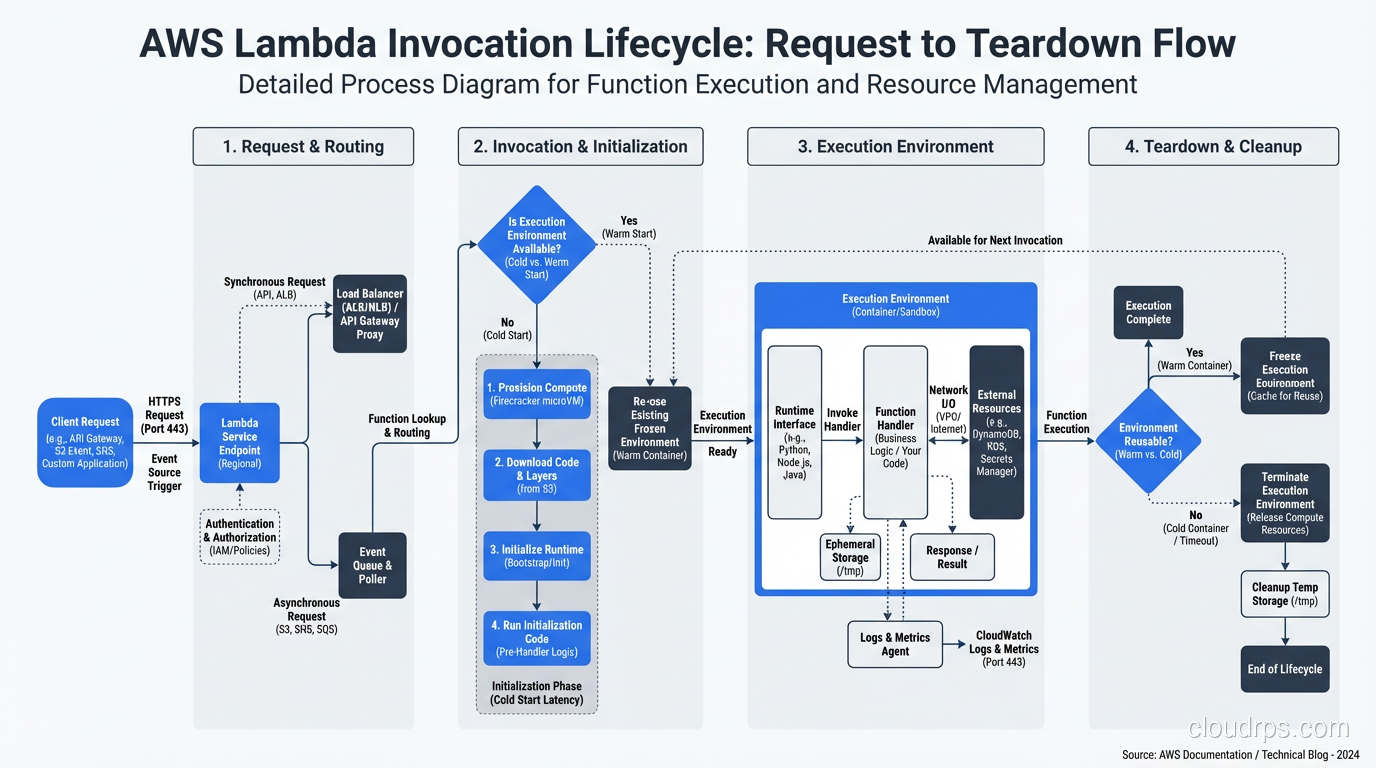
When you deploy a Lambda function, there is no server sitting idle waiting for your request. Here’s what actually happens:
- Your function code and configuration are stored in S3 and an internal registry.
- When an invocation arrives, the Lambda service allocates a lightweight execution environment, a microVM based on Firecracker (AWS’s open-source microVM monitor, built on KVM).
- Your code is loaded into this environment, dependencies are initialized, and your handler executes.
- The microVM may be kept “warm” for subsequent invocations, or it may be destroyed.
The physical reality: your code runs on the same kind of Nitro-based servers that power EC2. But you never see the server, you don’t choose the instance type (you choose memory, and CPU scales proportionally), and you don’t manage any aspect of the infrastructure.
The Cold Start Problem Explained
Cold starts make perfect sense when you understand the physical reality. When there’s no warm microVM available, Lambda needs to:
- Find capacity on a physical host
- Start a Firecracker microVM (fast, sub-100ms)
- Download and extract your deployment package
- Initialize the runtime (JVM startup, Python import, Node.js module loading)
- Execute your function
Steps 3 and 4 are what take time. A Python function with a few small dependencies might cold-start in 200ms. A Java function with a large dependency tree can take 5-10 seconds. This isn’t a bug in Lambda; it’s the physical reality of loading code into a new execution environment.
For a deeper dive, see What Does Serverless Really Mean?.
The Physical Equivalent That Doesn’t Quite Exist
The closest physical world analogy to Lambda is… there isn’t one. In a physical data center, you always had servers running, waiting for requests. The idea of spinning up compute on-demand per-request didn’t exist because physical hardware can’t provision in milliseconds.
The closest thing would be a huge pool of shared servers with a very fast application deployment pipeline. But even that doesn’t capture Lambda’s per-invocation billing or automatic scaling. Lambda is genuinely new, a service model that only makes sense because virtualization technology (specifically lightweight microVMs) got fast enough to make it practical.
Putting It All Together: A Practical Translation Table
Here’s how I map cloud services to physical hardware when I’m explaining architectures to teams:
| AWS Service | Physical Equivalent | Key Difference |
|---|---|---|
| EC2 | Rack-mounted server | Shared hardware, minutes to provision |
| EBS | SAN LUN | Network-attached, replicated, elastic |
| EFS | NAS/NFS filer | Fully managed, auto-scaling |
| Lambda | Nothing equivalent | Per-request compute, no idle cost |
| Instance Store | Local disk/DAS | Ephemeral, lost on stop/terminate |
That last row is important. EC2 instances can have “instance store” volumes. These ARE local disks on the physical host. They’re fast (NVMe latency), but ephemeral. Stop or terminate the instance, the data is gone. This is the direct equivalent of a local disk in a physical server, warts and all.
The Lesson
Understanding the physical reality behind cloud services isn’t just trivia. It’s the difference between an architect who chooses gp3 for a database because it’s the default, and an architect who understands that gp3’s latency profile won’t work for a write-heavy OLTP workload and specifies io2 with provisioned IOPS.
Every cloud service is an abstraction over physical hardware. The abstraction is useful; it’s why we use the cloud. But abstractions leak. They leak in latency characteristics, in failure modes, in cost profiles, and in performance ceilings. The architects who know what’s behind the curtain build better systems than those who don’t.
I didn’t learn that from a certification. I learned it from years of debugging production issues where the root cause was a mismatch between what someone thought a service was and what it actually was. Don’t make the same mistake.
Updated September 1, 2026: corrected biographical details and removed unsourced statistics as part of an accuracy review.
Get Cloud Architecture Insights
Practical deep dives on infrastructure, security, and scaling. No spam, no fluff.
By subscribing, you agree to receive emails. Unsubscribe anytime.