
In 2003, I installed my first copy of VMware ESX (not ESXi, but ESX, the one with the Linux-based service console). I was running a mid-size data center, and a vendor told me I could run four servers on one physical box. I thought he was full of it. Within six months, I’d virtualized 60% of our environment and was evangelizing it to anyone who would listen.
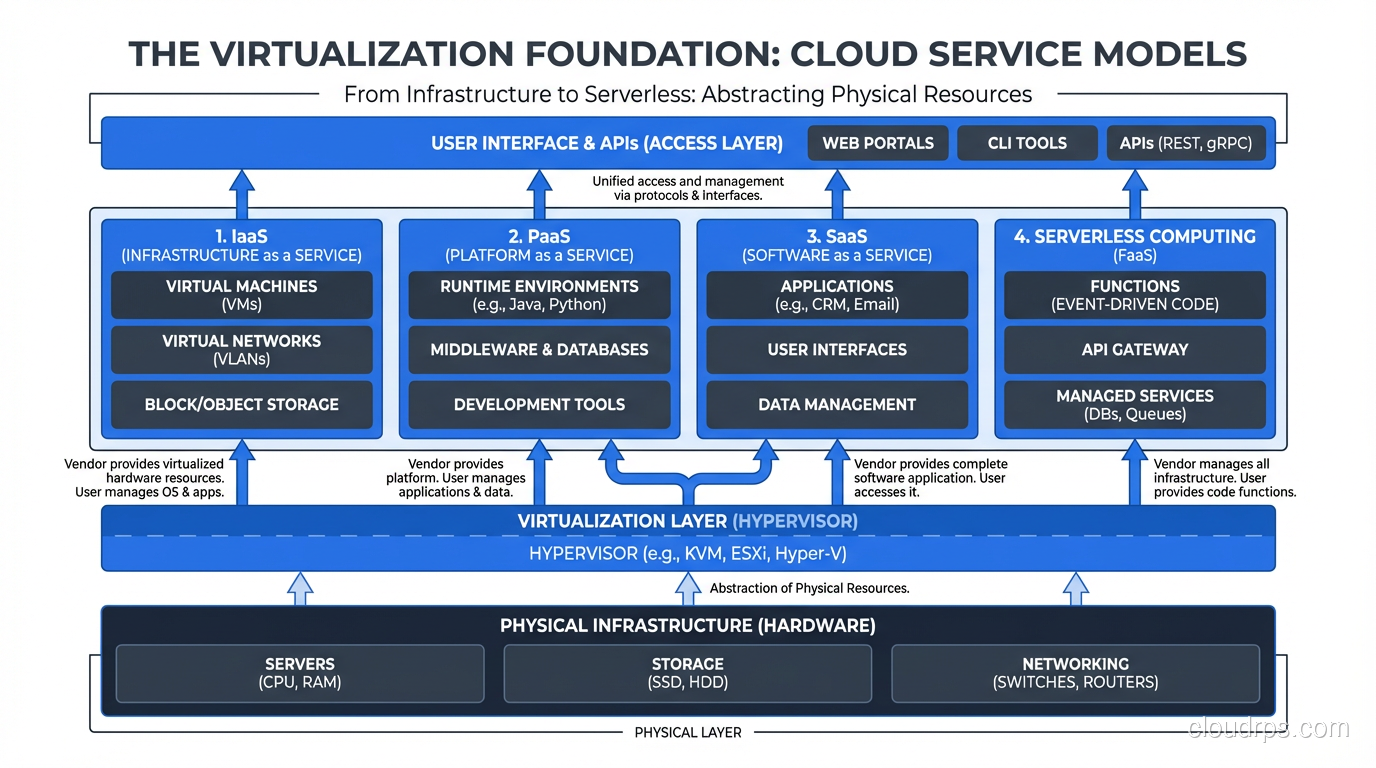
That experience taught me something important: virtualization is the single most consequential technology in modern infrastructure. Without it, cloud computing as we know it simply doesn’t exist. Every EC2 instance, every Azure VM, every Google Compute Engine instance runs on a hypervisor. Understanding how hypervisors work isn’t academic curiosity; it’s foundational knowledge that affects every architectural decision you make.
What Virtualization Actually Is
Let me cut past the textbook definition. Virtualization is the art of lying to software.
When you install an operating system on a physical server, that OS expects to have exclusive access to the CPU, memory, disk, and network hardware. It talks directly to the hardware through well-defined interfaces. The OS is the king of the castle, and it knows it.
Virtualization inserts a layer, the hypervisor, that intercepts those conversations and makes each virtual machine believe it has its own dedicated hardware. The VM’s operating system thinks it’s running on bare metal. It has no idea (in a well-implemented hypervisor) that it’s sharing a physical host with a dozen other VMs.
This isn’t just resource sharing. It’s complete isolation with the illusion of dedicated hardware. And pulling off that illusion efficiently is one of the most impressive engineering achievements in systems software.
How Hypervisors Work: The CPU Problem
The core challenge of virtualization is the CPU. x86 processors (which power the vast majority of servers) use privilege rings, Ring 0 through Ring 3. The operating system kernel runs in Ring 0, which gives it full hardware access. User applications run in Ring 3, with restricted access.
Here’s the problem: if you’re running multiple operating systems on one physical machine, they can’t all run in Ring 0. Only one thing can have true hardware control. So how do you let a guest OS think it’s in Ring 0 when it’s not?
The Early Days: Binary Translation
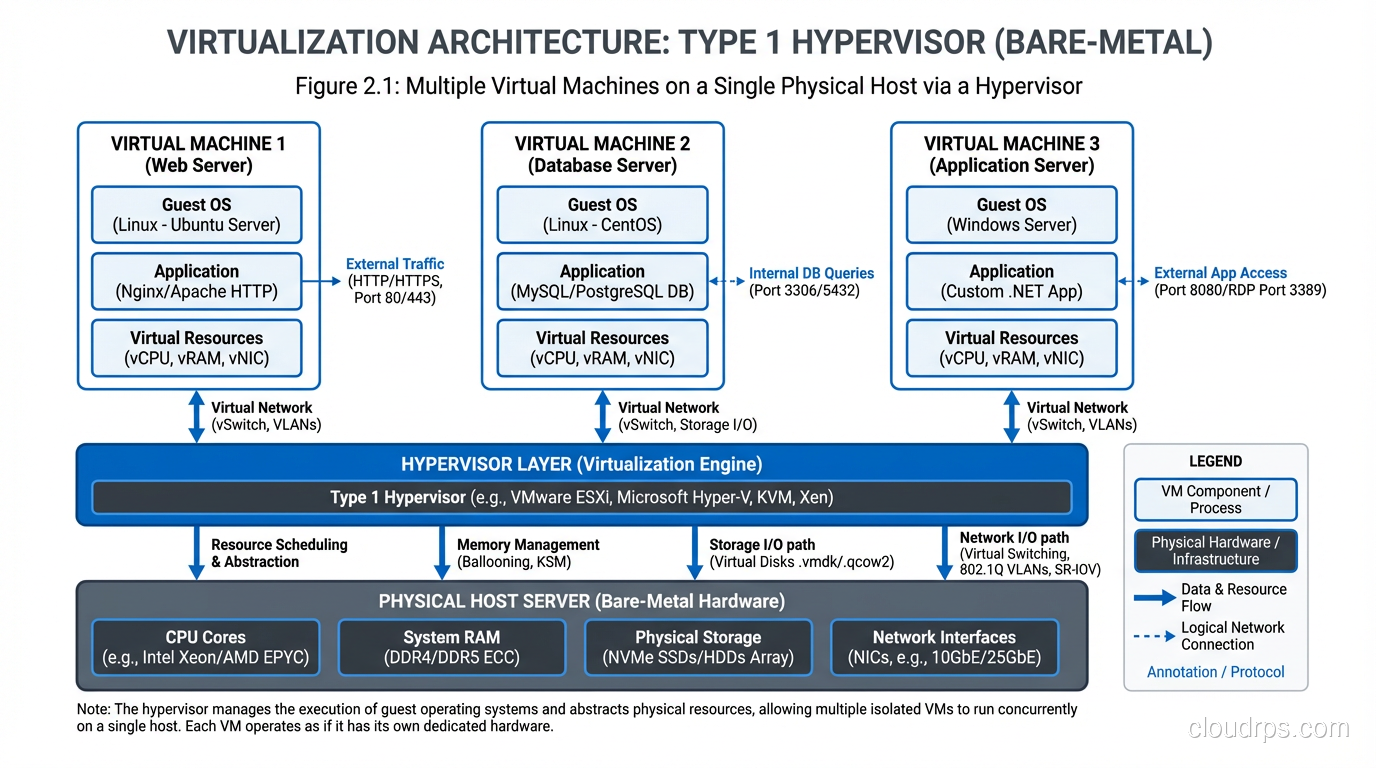
The first generation of x86 virtualization solved this through binary translation. VMware pioneered this approach, and it was genuinely brilliant. The hypervisor would scan the guest OS’s instruction stream in real-time and replace privileged instructions with equivalent safe instructions that the hypervisor could trap and emulate.
I ran production workloads on binary-translation-based VMware for years. It worked, but there was overhead. CPU-intensive workloads could see 10-20% performance penalties. For most server workloads (which are I/O bound, not CPU bound) this was acceptable. But it nagged at me.
Paravirtualization: The Xen Approach
Xen took a different approach called paravirtualization. Instead of trying to trick the guest OS, Xen modified the guest OS to be aware it was running in a virtual machine. The guest would make explicit “hypercalls” to the hypervisor instead of trying to execute privileged instructions directly.
This was faster than binary translation, but it required modifying the guest OS kernel. That worked fine for Linux (open source, modify away), but it was a non-starter for Windows. Microsoft wasn’t going to modify their kernel for Xen’s benefit.
Hardware-Assisted Virtualization: The Game Changer
In 2005-2006, Intel (VT-x) and AMD (AMD-V) added hardware support for virtualization directly into their processors. They essentially created a new privilege level (sometimes called Ring -1) below Ring 0. The hypervisor runs in this new level, and guest operating systems run in Ring 0 as they expect to, but the hardware automatically traps privileged operations and redirects them to the hypervisor.
This changed everything. No more binary translation overhead. No need to modify guest operating systems. The hardware itself was designed to support virtualization natively.
I remember upgrading our hosts to VT-x-capable processors. The performance difference was immediately noticeable. CPU overhead dropped from 10-15% to 2-3% for most workloads. That’s when I knew virtualization was going to be the default, not the exception.
Type 1 vs Type 2 Hypervisors
This is one of the most common questions I get, and the distinction matters more than people think.
Type 1: Bare-Metal Hypervisors
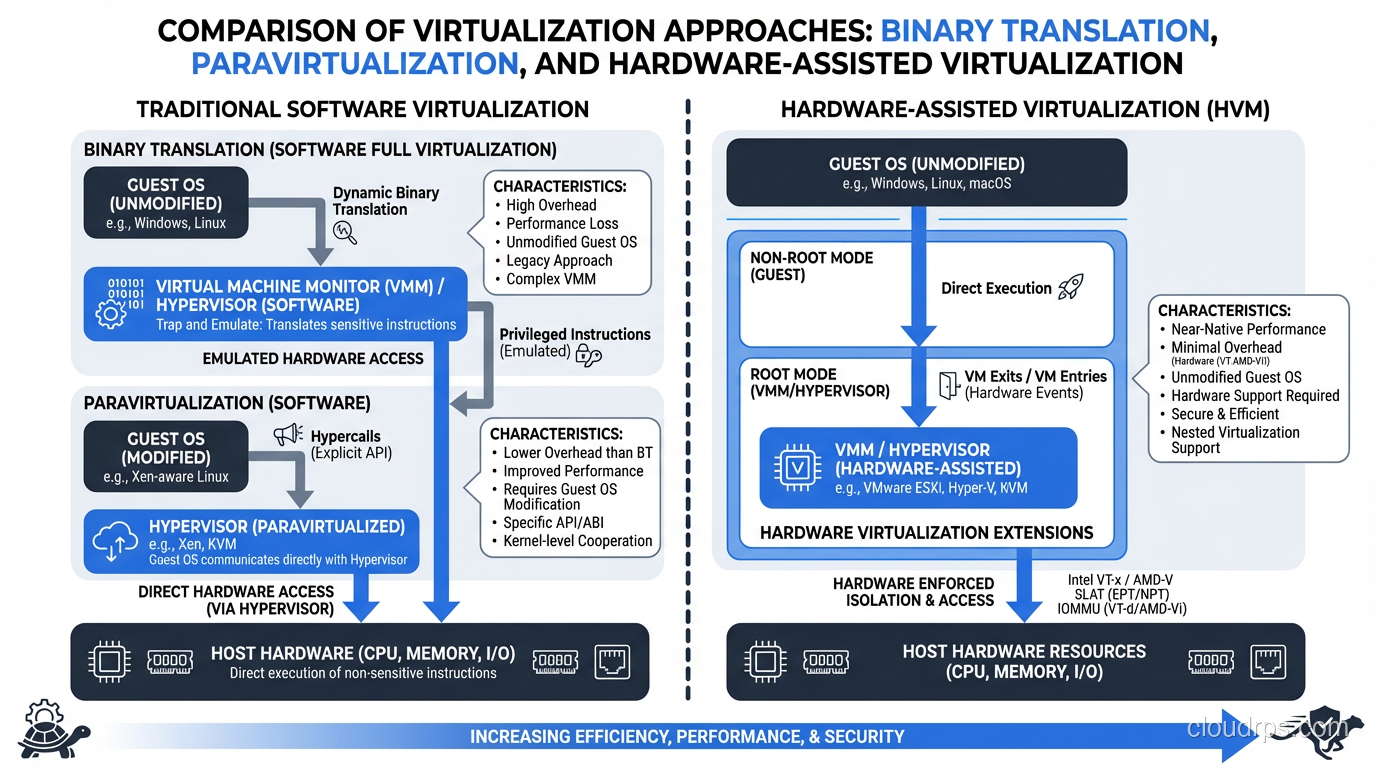
A Type 1 hypervisor runs directly on the physical hardware. There’s no general-purpose operating system underneath it. The hypervisor IS the operating system, purpose-built for one job: managing virtual machines.
Examples: VMware ESXi, Microsoft Hyper-V (when installed as a server role, it restructures itself as Type 1), Xen, KVM (this one’s debatable, and I’ll get to that in a moment).
Type 1 hypervisors are what run in data centers and cloud environments. Every major cloud provider uses a Type 1 hypervisor. AWS started with Xen and has moved to their custom Nitro hypervisor based on KVM. Azure uses a customized Hyper-V. Google uses a custom KVM-based hypervisor.
Type 2: Hosted Hypervisors
A Type 2 hypervisor runs as an application on top of a conventional operating system. Your host OS (Windows, macOS, Linux) runs on the hardware, and the hypervisor runs on top of that.
Examples: VMware Workstation, VMware Fusion, Oracle VirtualBox, Parallels Desktop.
Type 2 hypervisors are for development and testing, not production. They’re inherently less efficient because you have an entire general-purpose OS between the hypervisor and the hardware. I use VMware Fusion on my Mac for testing, but I’d never run production workloads on it.
The KVM Debate
KVM (Kernel-based Virtual Machine) blurs the line between Type 1 and Type 2, and this drives taxonomy purists crazy. KVM is a Linux kernel module that turns the Linux kernel itself into a hypervisor. So is it Type 1 because the hypervisor is in the kernel? Or Type 2 because it’s running on Linux?
In practice, it doesn’t matter. KVM on a purpose-built Linux host performs like a Type 1 hypervisor and is used as one by AWS, Google, and dozens of other cloud providers. The Type 1/Type 2 distinction is useful conceptually but the lines have blurred.
Memory Virtualization: Where Things Get Interesting
CPU virtualization gets all the attention, but memory virtualization is where the real complexity lives.
Each virtual machine thinks it has a contiguous block of physical memory starting at address 0. But that “physical” memory is actually virtual, mapped to actual physical RAM by the hypervisor through an additional layer of address translation.
So you end up with three levels of memory addressing: the guest application’s virtual addresses, the guest OS’s “physical” addresses (which are actually virtual), and the actual physical addresses on the hardware. Modern CPUs have hardware support for this nested page table translation (Intel calls it EPT, AMD calls it NPT), which keeps the overhead manageable.
Memory Overcommit: The Double-Edged Sword
Here’s where my war story comes in. Hypervisors let you overcommit memory, allocating more memory to VMs than you have physical RAM. A host with 256 GB of physical RAM might run VMs with a combined 400 GB of allocated memory, betting that they won’t all use their full allocation simultaneously.
This works great until it doesn’t. I once had a production cluster where an overcommitted host hit a memory crunch during peak traffic. The hypervisor started using balloon drivers and memory compression to cope, but eventually had to swap to disk. VM performance went from normal to absolutely catastrophic in about 90 seconds. Multiple applications went down simultaneously because they shared the same physical host.
After that incident, I established a hard policy: never overcommit memory in production by more than 25%, and always monitor the actual physical memory utilization at the host level, not just what the VMs report.
Storage Virtualization
Virtual machines need disk storage, and the hypervisor abstracts this too. A VM sees a hard drive, usually presented as a SCSI device. But that “drive” is typically a file on a shared storage system (a VMDK file in VMware, a QCOW2 file in KVM).
This file-based storage is what enables many of virtualization’s most powerful features: snapshots, cloning, live migration. Since the VM’s “disk” is just a file, you can snapshot it (save a point-in-time copy), clone it (copy the file), or move it between physical hosts (copy or share the file across a network).
But there’s a performance cost. Adding layers between the VM and the physical disk introduces latency. Modern solutions like NVMe passthrough and SR-IOV let VMs talk more directly to physical storage devices, but you lose some of the abstraction benefits.
Network Virtualization
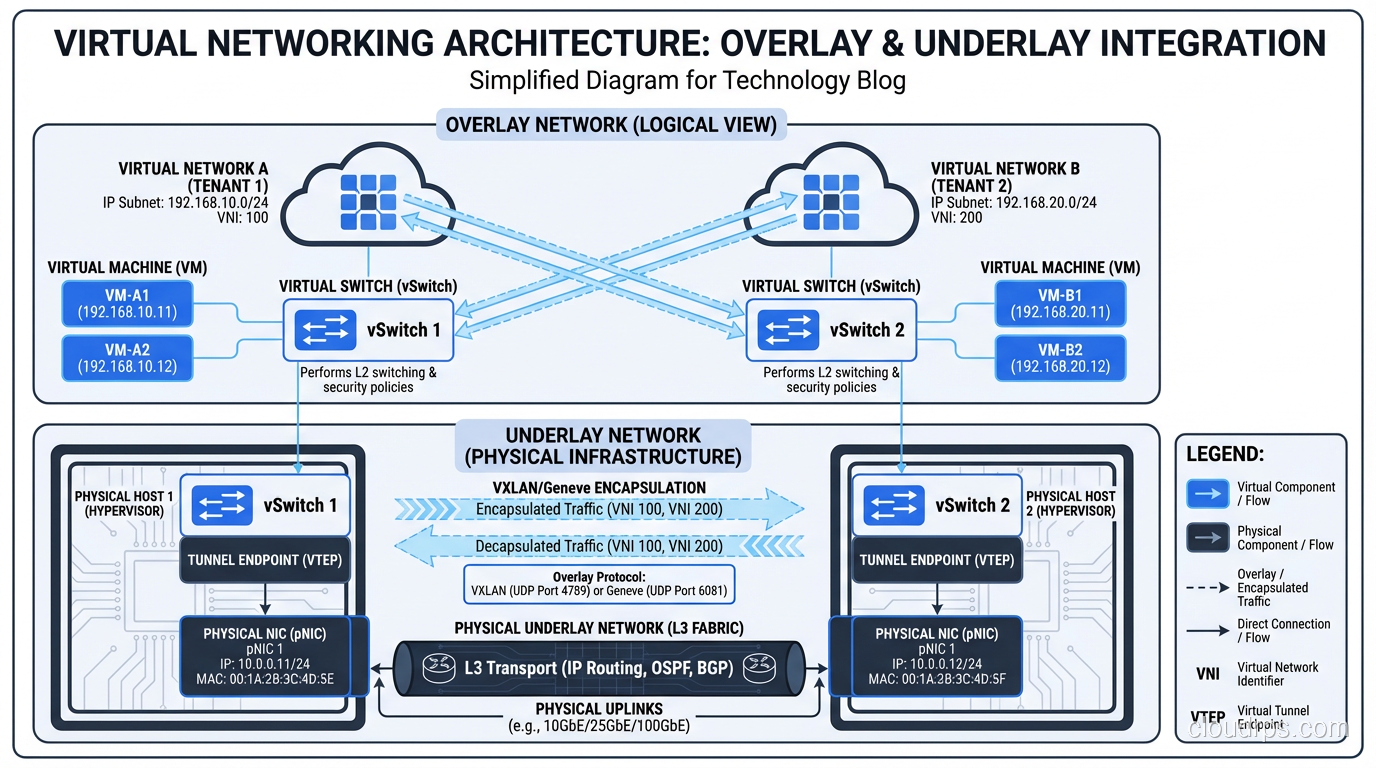
Each virtual machine needs network connectivity, and the hypervisor provides virtual network interfaces connected through virtual switches. This is straightforward at a basic level; the virtual switch acts like a physical network switch, forwarding traffic between VMs and to the physical network.
Where it gets complex is in multi-tenant environments. Cloud providers need network isolation between different customers’ VMs even when they share the same physical host and physical network. This is typically achieved through overlay networks (VXLAN, GENEVE) that encapsulate tenant traffic in tunnels, providing logical separation on shared physical infrastructure.
The networking overhead from virtualization used to be significant. I remember the days of soft-switch performance caps around 1-2 Gbps per host. Modern approaches using SR-IOV (Single Root I/O Virtualization) and smart NICs have largely eliminated this bottleneck, pushing virtual network performance to near line rate.
Live Migration: The Party Trick That Changed Operations
If there’s one feature of modern hypervisors that still impresses me after twenty years, it’s live migration: the ability to move a running virtual machine from one physical host to another with no downtime.
Think about what that means. A running operating system, with active network connections and in-flight I/O, gets moved to completely different physical hardware while continuing to operate. Users don’t notice. Applications don’t crash. Network connections don’t drop.
The way it works: the hypervisor copies the VM’s memory to the destination host while it’s still running. Pages that change during the copy get re-copied. This iterative process continues until the remaining “dirty” pages are small enough to transfer in a brief pause (typically milliseconds). The VM freezes for that instant, the final pages and CPU state transfer, and the VM resumes on the new host.
Live migration is what makes hardware maintenance in the cloud invisible to users. Need to patch a physical host’s firmware? Migrate the VMs off, patch, migrate them back. No downtime. No maintenance windows. This capability alone justified the move to virtualization for many of the enterprises I worked with.
Containers vs VMs: The Nuance Nobody Talks About
I get asked about containers versus VMs constantly, and the conversation is usually framed as an either/or choice. That framing is wrong.
Containers don’t replace VMs. They run on top of them in most production environments. When you run containers in AWS ECS or on Kubernetes in EKS, those containers are running inside EC2 instances, which are VMs running on hypervisors. It’s turtles all the way down.
The difference is in what gets virtualized. A VM virtualizes the entire hardware stack, so each VM has its own kernel. A container virtualizes at the OS level: containers share the host kernel but have isolated filesystems, process trees, and network stacks.
VMs provide stronger isolation (separate kernels, hardware-level separation). Containers provide faster startup and lower overhead (no duplicate kernel, shared OS resources). For serverless workloads where startup time matters, containers (or even lighter-weight isolation like firecracker microVMs) are the right choice. For workloads where you need strong security isolation between tenants, VMs are still the answer.
In practice, most architectures use both. VMs for infrastructure isolation, containers for application deployment. Understanding how both work makes you a better architect.
What This Means For Your Architecture
Here’s the practical takeaway after twenty years of building on virtualized infrastructure:
Understand the noisy neighbor problem. Your VM shares physical hardware with other VMs. If another VM on the same host is hammering the CPU or I/O subsystem, your performance can be affected. Cloud providers work hard to mitigate this, but it’s real. If you need guaranteed performance, look at dedicated instances or bare-metal options.
Don’t treat VMs like physical servers. VMs are disposable. Design your architecture so any VM can be destroyed and replaced without data loss or service interruption. This “cattle, not pets” mindset is fundamental to building resilient cloud systems.
Monitor at the right level. VM-level metrics can be misleading. A VM might show 50% CPU utilization, but if the physical host is overcommitted, that 50% might represent less real compute than you think. When possible, validate performance with application-level metrics, not just infrastructure metrics.
Right-size aggressively. In the physical world, you’d buy the biggest server you could afford because changing it later was expensive. In the virtualized cloud, you can resize on demand. Start small, measure actual usage, scale up only when data justifies it.
Virtualization is the foundation everything else is built on. Every time you launch a cloud instance, deploy a container, or invoke a serverless function, virtualization is doing the heavy lifting underneath. The architects who understand that layer make better decisions at every layer above it.
That’s what two decades of working with this technology has taught me. The details matter, and the abstractions leak. Know what’s underneath.
Get Cloud Architecture Insights
Practical deep dives on infrastructure, security, and scaling. No spam, no fluff.
By subscribing, you agree to receive emails. Unsubscribe anytime.